Homelab note This post documents how I set up GOAD-Light as an Active Directory pentesting lab, and the troubleshooting it took to actually get it provisioning. The build was largely automated, but several issues needed hands-on debugging before the lab came up.
Overview
GOAD (Game of Active Directory) is a vulnerable Active Directory environment built for practising offensive AD techniques. I chose GOAD-Light, a trimmed-down version of the full lab, because it gives a realistic multi-host AD environment while needing fewer hardware resources.
The goal was a local lab I could use to practise AD enumeration, privilege escalation, lateral movement, BloodHound analysis, and Kerberos attacks, all on hardware I already own.
Lab Environment
| Component | Version / Details |
|---|---|
| Host OS | Windows 11 |
| Hypervisor | VMware Workstation Pro |
| Automation | Vagrant |
| Lab | GOAD-Light |
| RAM | 32 GB |
| Pentesting VM | Kali Linux (VMware) |
Inside GOAD-Light
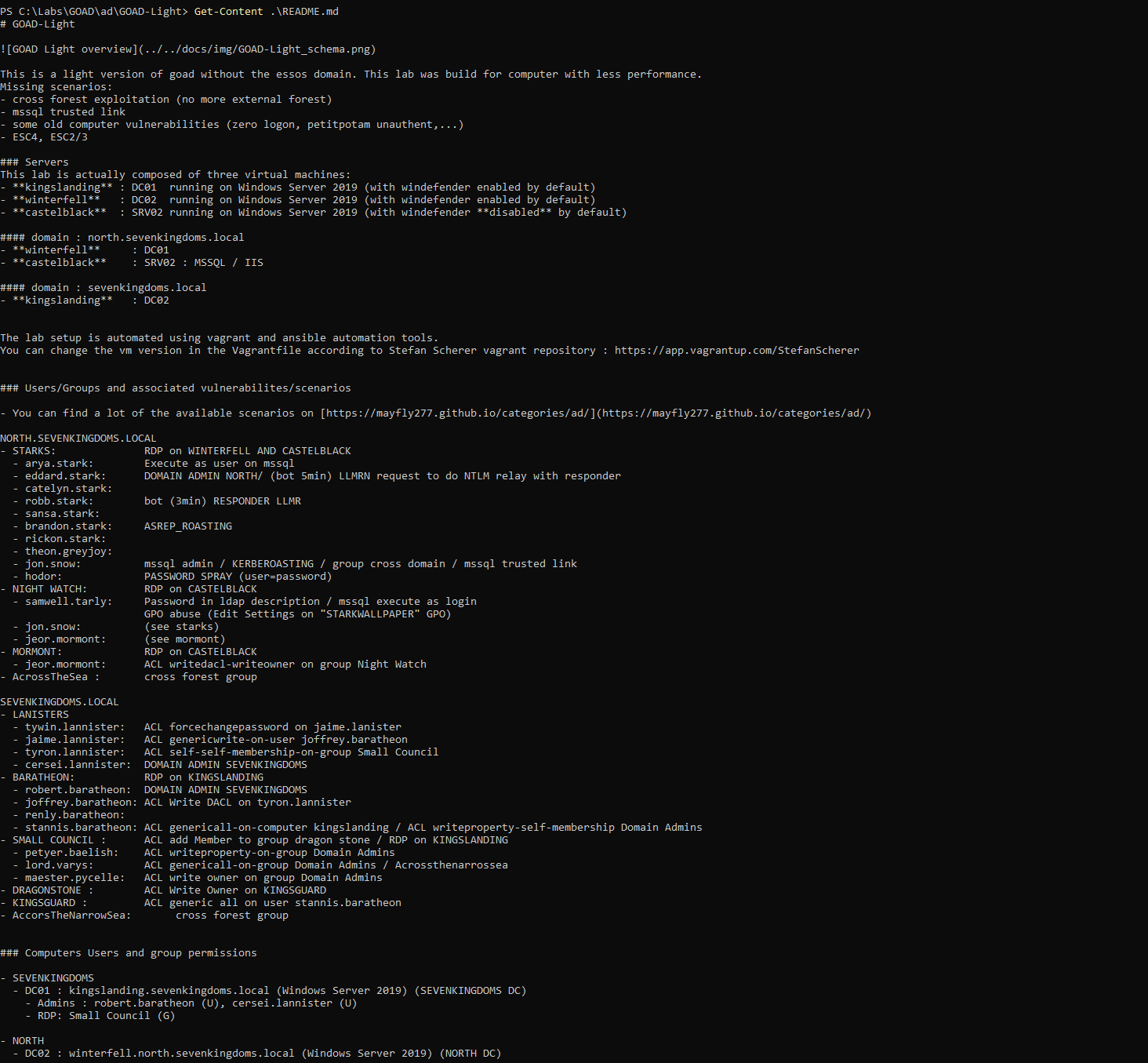
GOAD-Light is a cut-down version of the full GOAD lab. It drops the essos
domain (so no cross-forest exploitation or MSSQL trusted links) and removes some
of the heavier scenarios such as ZeroLogon, PetitPotam unauthenticated, and
ADCS ESC2/ESC3/ESC4, so it runs lighter while still being a realistic
multi-host Active Directory target.
The lab is made up of three Windows Server 2019 VMs across two domains:
| Host | Role | Domain | Notes |
|---|---|---|---|
| kingslanding | DC01 | sevenkingdoms.local | Root domain DC (Defender on) |
| winterfell | DC02 | north.sevenkingdoms.local | Child domain DC (Defender on) |
| castelblack | SRV02 | member server | IIS, MSSQL, SMB share (Defender off) |
The users and groups ship with deliberate misconfigurations, which map directly to the techniques I want to practise — AS-REP roasting, Kerberoasting, password spraying, LLMNR/NTLM relay, a range of ACL abuses (ForceChangePassword, GenericWrite, WriteDACL, WriteOwner, GenericAll), GPO abuse, MSSQL impersonation, and credentials stashed in an LDAP description.
Initial Setup
Installed the following components:
- VMware Workstation Pro
- Vagrant
- VMware Desktop Provider
- Vagrant VMware Utility
- Git
- Python
- GOAD repository
Example commands:
git clone https://github.com/Orange-Cyberdefense/GOAD
python -m venv .env
.\.env\Scripts\Activate.ps1
python goad.py -m vm
GOAD Configuration
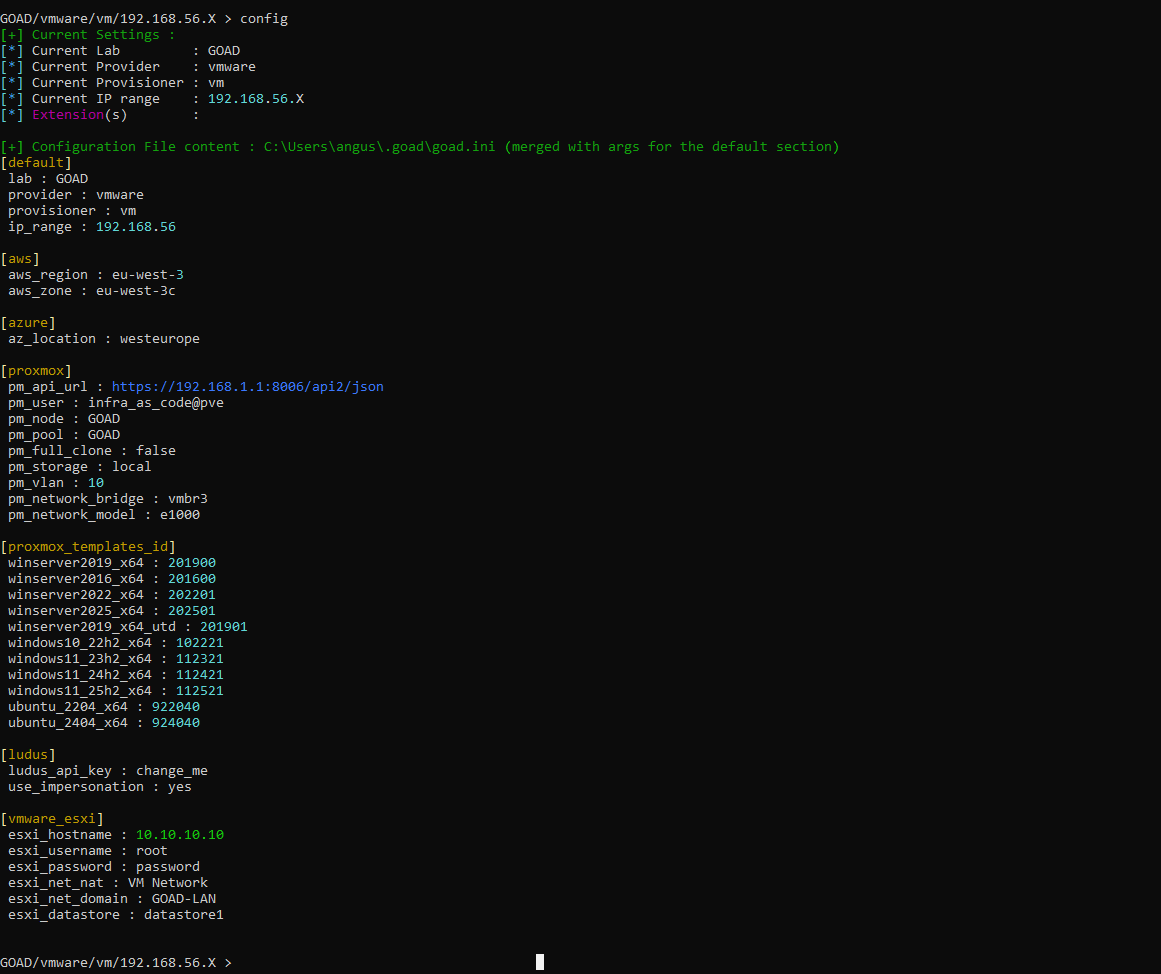
The lab was configured to deploy locally with the following options:
Provider:     VMware
Lab:          GOAD-Light
Provisioner:  VM
Network:      192.168.56.X
Running config in the GOAD management console shows the current settings and
the merged goad.ini, confirming the VMware provider, vm provisioner, and the
192.168.56 IP range are active:
Challenges Encountered
Although the installation was largely automated, several issues required troubleshooting before the lab would provision.
1. VMware Utility Missing
Problem
Vagrant failed with:
Unable to load utility service key file
Resolution
Installed the Vagrant VMware Utility, which provides the service Vagrant needs to talk to VMware Workstation.
2. GOAD Launcher Bug (Windows)
Problem
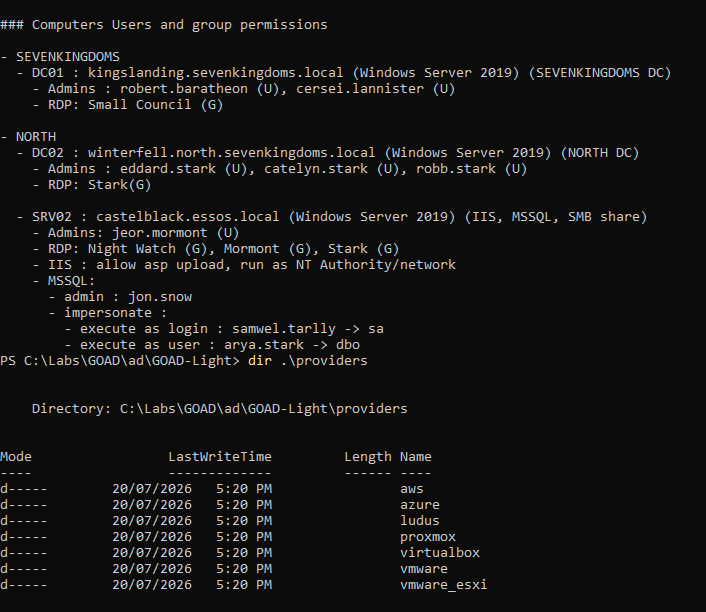
The newer GOAD installer supports multiple providers — the providers folder
ships with aws, azure, ludus, proxmox, virtualbox, vmware, and
vmware_esxi. On this installation it tried to initialize the Ludus
provider even though the lab was being deployed locally with VMware Workstation.
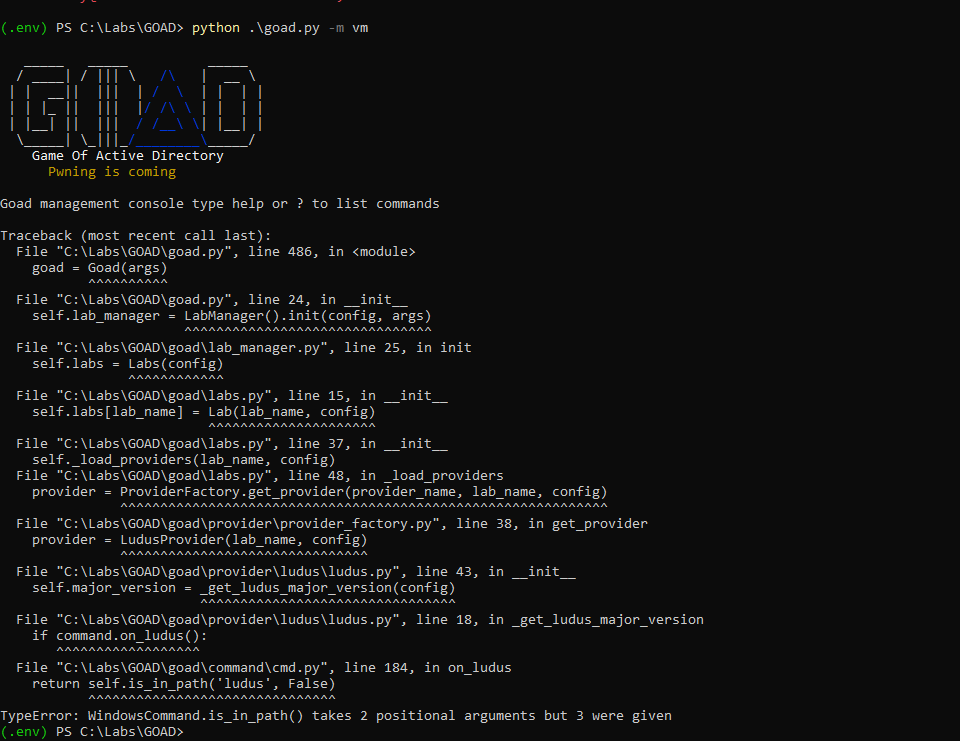
Launching the console crashed while loading providers, tracing straight through
LudusProvider:
File "C:\Labs\GOAD\goad\provider\provider_factory.py", line 38, in get_provider
    provider = LudusProvider(lab_name, config)
File "C:\Labs\GOAD\goad\provider\ludus\ludus.py", line 43, in __init__
    self.major_version = _get_ludus_major_version(config)
...
TypeError: WindowsCommand.is_in_path() takes 2 positional arguments but 3 were given
Resolution
Set VMware as the active provider and disabled Ludus.
- Set the default provider to VMware in
~/.goad/goad.ini:
[default]
provider = vmware
provisioner = local
- Launched the GOAD shell with the Ludus provider disabled. GOAD’s
documentation lists
-d ludusas the way to disable that provider:
./goad.sh -d ludus
This stopped GOAD from trying to initialize Ludus. The working setup used:
- VMware Workstation
- Vagrant with the
vagrant-vmware-desktopplugin - Local provisioning (not Ludus)
I also verified the VMware provider (vagrant-vmware-desktop) was installed
correctly as part of getting the lab running.
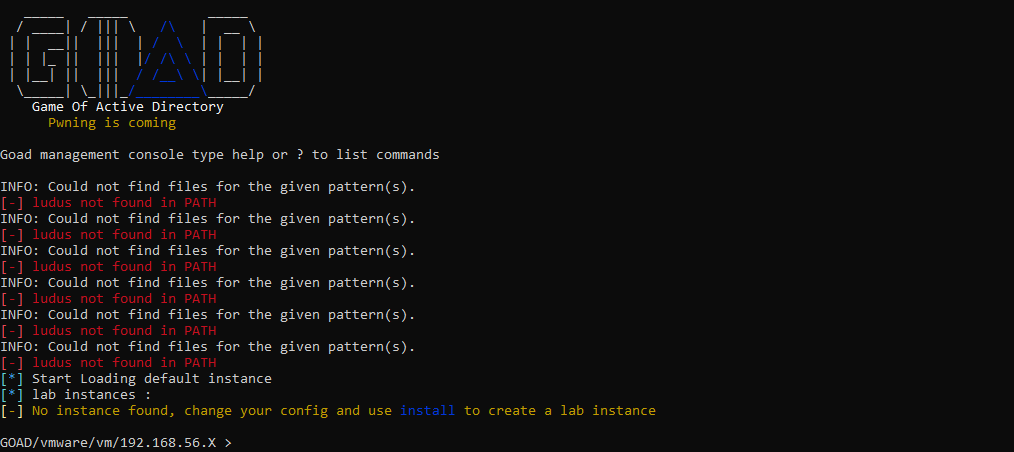
With Ludus disabled, the console loads to the GOAD management prompt. It still
prints a few ludus not found in PATH notices, but no longer crashes and
reaches the shell:
3. Missing Vagrant Plugin
Problem
Running check in the GOAD console reported the missing plugin (while
confirming vagrant.exe, vmrun.exe, and the vagrant-vmware-desktop plugin
were all present):
Missing vagrant plugin vagrant-reload

Resolution
Installed the plugin:
vagrant plugin install vagrant-reload
4. VMnet2 Network Adapter Misconfiguration
Problem
Provisioning repeatedly failed. Windows showed:
169.254.x.x
for the VMnet2 adapter instead of the expected GOAD subnet. That’s an APIPA address, which meant the adapter had no valid host-only network configuration.
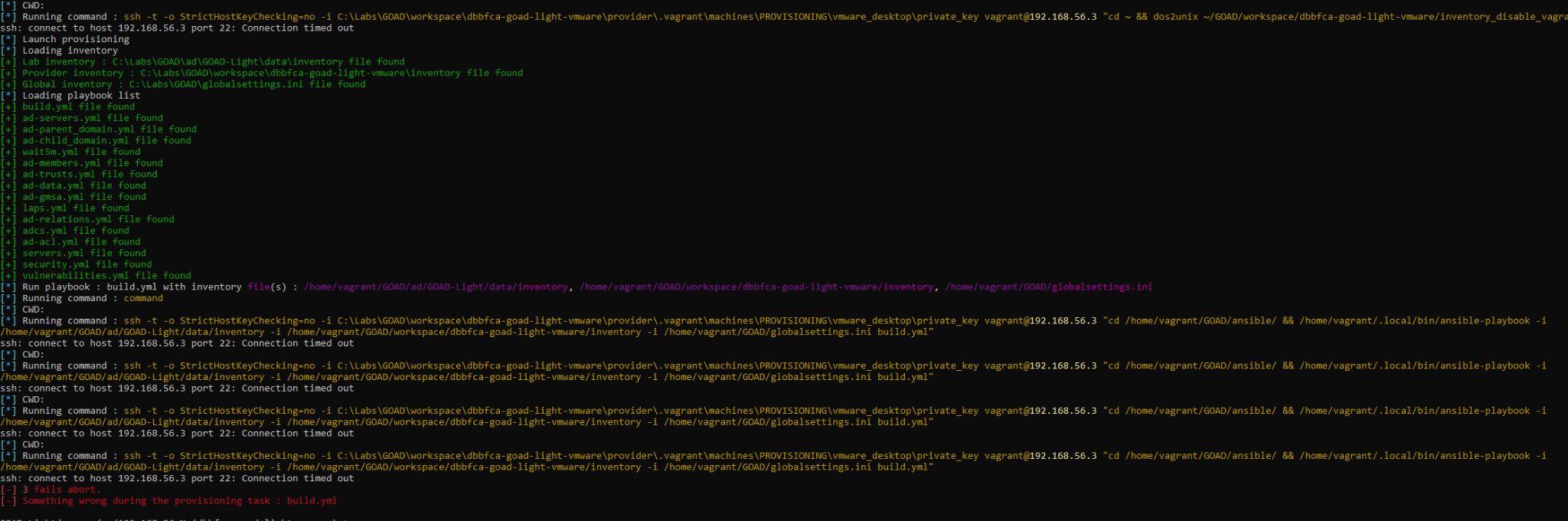
The downstream effect showed up during provisioning: Ansible ran build.yml
over SSH to the provisioning VM at 192.168.56.3, but every connection timed
out and the run aborted:
ssh: connect to host 192.168.56.3 port 22: Connection timed out
[-] 3 fails abort.
[-] Something wrong during the provisioning task : build.yml
Because VMnet2 had no valid host-only address, the 192.168.56.3 provisioning
host was simply unreachable.
Resolution
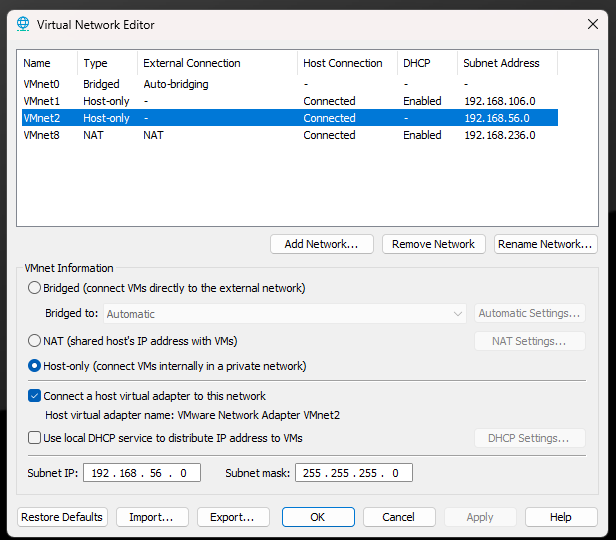
Recreated and reconfigured the VMware host-only network in the Virtual Network Editor:
VMnet2:  Host Only
Subnet:  192.168.56.0/24
DHCP:    Disabled
5. Provisioning VM Networking
Verified the provisioning VM contained both required interfaces:
eth0    192.168.236.x
eth1    192.168.56.3
This confirmed:
- Internet connectivity
- Host-only network connectivity
6. Initial Provisioning Failure
Problem
The initial setup failed before cloning the GOAD repository into the provisioning VM.
Resolution
After network connectivity was restored, setup_local_jumpbox.sh completed
successfully.
7. Disk Space Issue
Problem
Ansible reported:
No space left on device
Resolution
Cleared temporary files and freed storage inside the provisioning VM, which allowed provisioning to continue.
Current Status
At the time of writing, provision_lab is successfully provisioning:
- Domain Controllers
- Users
- Groups
- Trust Relationships
- Active Directory services
- IIS
- MSSQL
Lessons Learned
Building the lab took far more troubleshooting than I expected.
Key takeaways included:
- Understanding VMware networking
- Diagnosing host-only network issues
- Working with Vagrant providers
- Troubleshooting Ansible provisioning
- Recovering from partial automation failures
- Debugging SSH connectivity
- Managing Linux guest storage
- Reading and interpreting infrastructure logs
It was frustrating at the time, but resolving each issue taught me more about the infrastructure than a clean automated run ever would have.
Next Steps
Once provisioning is complete, the lab will be used to practise:
- Active Directory enumeration
- BloodHound
- SMB enumeration
- LDAP enumeration
- AS-REP Roasting
- Kerberoasting
Resources
- GOAD — Orange Cyberdefense
- Vagrant VMware provider documentation
- VMware Workstation host-only networking reference